Map performance modes: Ultra, Balanced and Eco
The iS Gather map has three performance modes. They decide how much 3D your device draws. In every mode you still see everyone you could see before: the mode only changes how they are drawn.
On this page
Which mode should I pick?
Not sure? Keep Balanced. It is the default, and it is the standard map.
| Mode | Pick it when | What you get |
|---|---|---|
| Ultra | You have a recent phone or a computer | The most 3D avatars and full effects |
| Balanced | Most of the time (default) | The standard map, with Eco on low battery |
| Eco | The map feels slow, or you want to save battery | Fewer 3D avatars, no blur, no rain or snow |
What changes on the map
3D avatars or pins. Each mode sets how many people near you are drawn as 3D avatars. Everyone else shows as a pin, so nobody disappears from the map.
How many in 3D. Balanced draws up to 12 people in 3D on a computer, 6 on a phone browser and 3 in the Android app. Eco draws 3, 2 and 1. Ultra allows up to 16, 8 and 4, within the overall limit our team sets.
Effects. Ultra keeps the frosted glass behind the map's panels and the full weather. Eco turns off the blur and the falling rain and snow (fog and the sky stay), and draws buildings flat.
Movement. Avatars keep moving in every mode. When the map is still, Eco redraws it less often, which saves work for your device.
How much smoother is Eco?
We tested on a mid-range Android phone, switching modes back and forth on the same map three times. Compared with Balanced, Eco drew about 25 % more frames per second while the map was still and about 44 % more while pinching to zoom.
Ultra was the slowest of the three on that phone, so keep it for recent phones and computers. Eco does the least work, so it is also the easiest on your battery. We have not measured battery life per mode, so we don't quote a number.
Automatic Eco on low battery
In Balanced, the map switches to Eco by itself when your battery is at 20 % or less and not charging. It goes back to Balanced when you plug in or the battery is back at 25 %. Settings shows a short note while this happens.
This works where the browser reports the battery level, such as Chrome and the Android app. Ultra and Eco never change by themselves. If the map is struggling, Settings may suggest Eco, but the choice stays yours.
Limits set by the iS Gather team
Our team can set an overall limit on 3D avatars, or show everyone as pins for a while, for example when the map is very busy. Those limits always win over your mode. That is why Ultra can look the same as Balanced on a computer.
How to change your mode
On the web and in the Android app: open your profile, tap the gear to open Settings, open the More tab and choose Ultra, Balanced or Eco under Map performance.
The map changes right away, with no reload. Your choice is saved on this device only, so your phone and your computer can use different modes. New to the map? Start with how a map-based social app works.
See who is on iS Gather in your city
Questions
- Will I see fewer people in Eco?
- No. Everyone who is visible to you stays on the map. Eco draws fewer of them as 3D avatars and shows the rest as pins.
- Which mode is the default?
- Balanced. It is the standard map and switches to Eco by itself only while your battery is low.
- Does my mode sync between devices?
- No. It is saved on each device, so you can use Ultra on your computer and Eco on your phone.
- Why does Ultra look the same as Balanced on my computer?
- The iS Gather team sets an overall limit on 3D avatars, and that limit always wins. On a computer, Balanced already reaches it.
Keep reading
 Explainer
Map-based social app guide
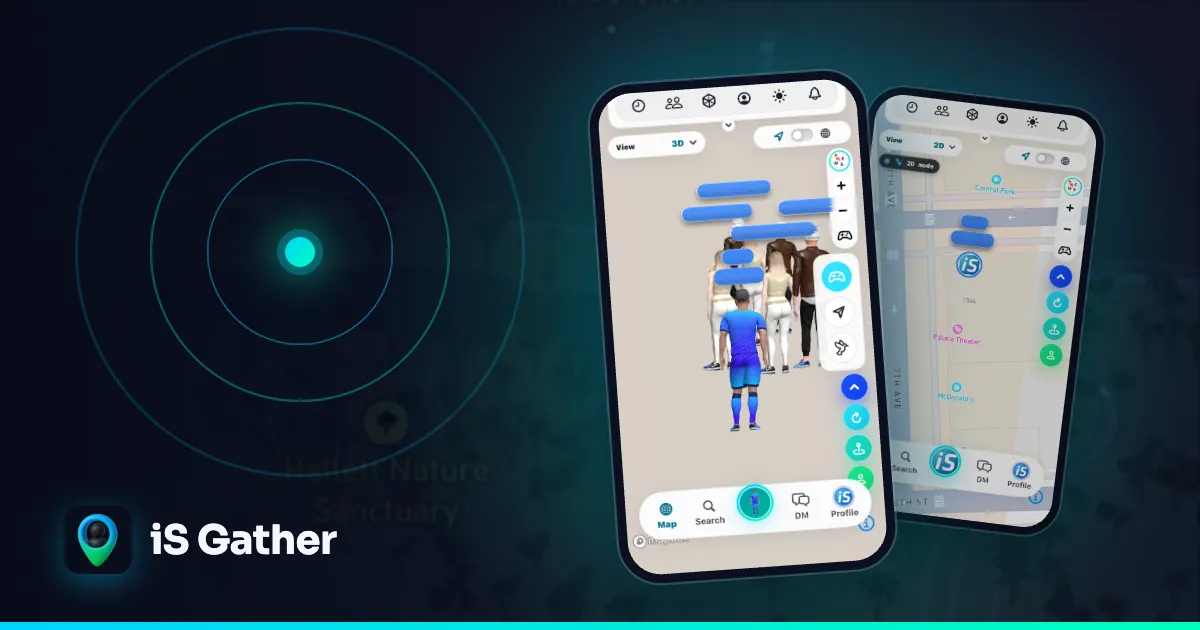
What a map-based social app is and how iS Gather's live map works.
 3D avatars
What Is a 3D Avatar Social Network? Explained (2026)
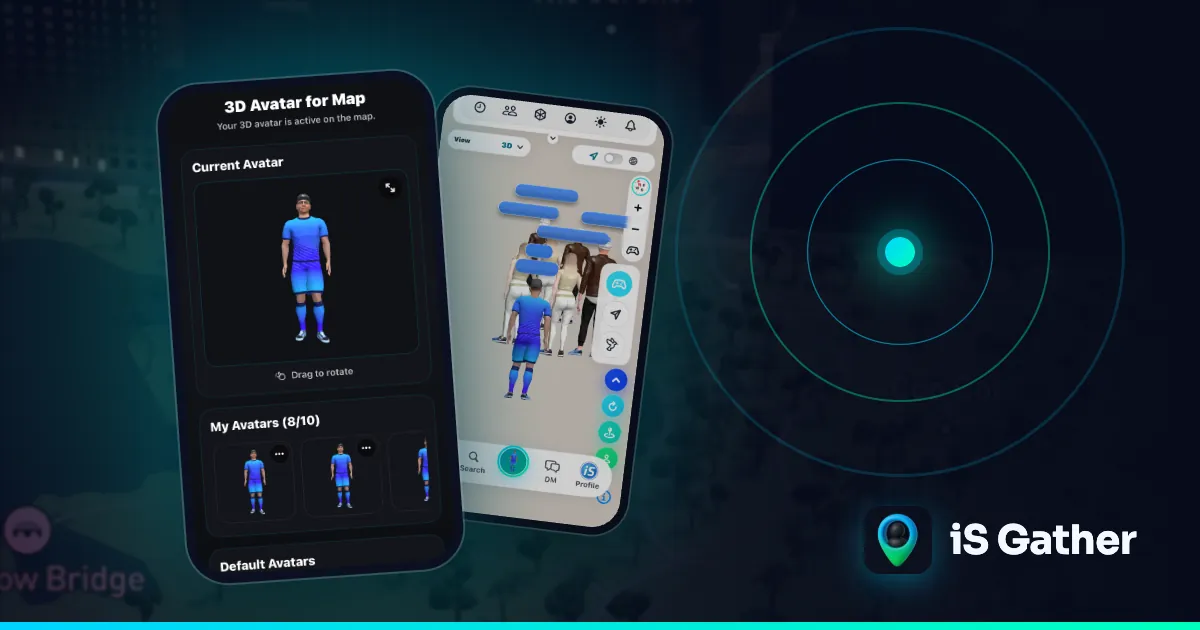
What a 3D avatar social network is, why people choose avatars over photos, what to look for in an app, and how iS Gather uses 3D avatars on a live map to meet people nearby.
 How-to
How to find friends nearby
Step by step: see people around you, send an ice breaker, stay private.